🪐✨ Jupyter MCP Server


> 🚨 NEW IN 0.14.0: Multi-notebook support! You can now seamlessly switch between multiple notebooks in a single session. Read more in the release notes.
Jupyter MCP Server is a Model Context Protocol (MCP) server implementation that enables real-time interaction with 📓 Jupyter Notebooks, allowing AI to edit, document and execute code for data analysis, visualization etc.
Compatible with any Jupyter deployment (local, JupyterHub, ...) and with Datalayer hosted Notebooks.
🚀 Key Features
- ⚡ Real-time control: Instantly view notebook changes as they happen.
- 🔁 Smart execution: Automatically adjusts when a cell run fails thanks to cell output feedback.
- 🧠 Context-aware: Understands the entire notebook context for more relevant interactions.
- 📊 Multimodal support: Support different output types, including images, plots, and text.
- 📁 Multi-notebook support: Seamlessly switch between multiple notebooks.
- 🤝 MCP-compatible: Works with any MCP client, such as Claude Desktop, Cursor, Windsurf, and more.
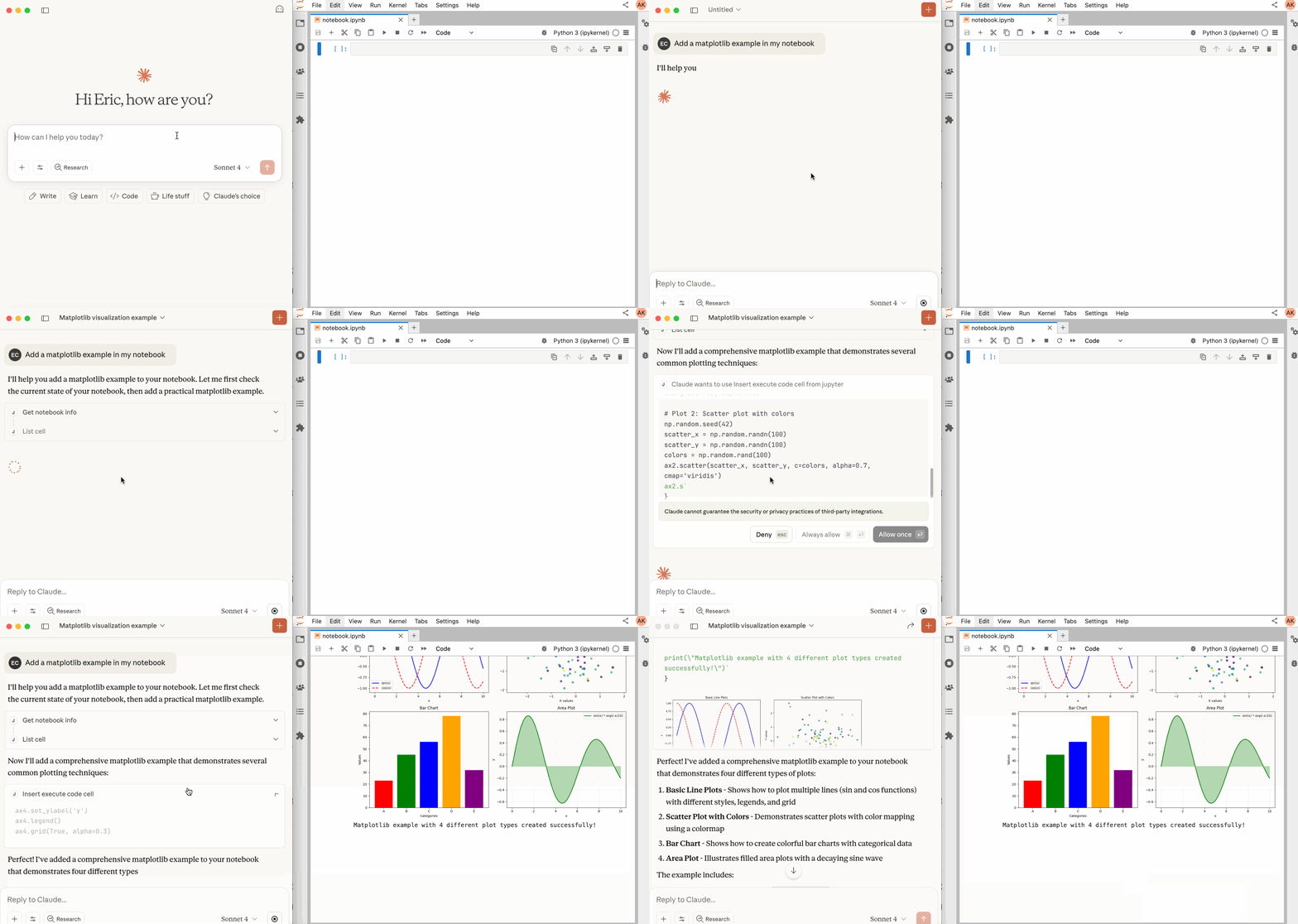
🛠️ This MCP offers multiple tools such as insert_cell, execute_cell, list_all_files, read_cell, and more, enabling advanced interactions with Jupyter notebooks. Explore our tools documentation to learn about all the tools powering Jupyter MCP Server.
🏁 Getting Started
For comprehensive setup instructions—including Streamable HTTP transport and advanced configuration—check out our documentation. Or, get started quickly with JupyterLab and stdio transport here below.
1. Set Up Your Environment
pip install jupyterlab==4.4.1 jupyter-collaboration==4.0.2 ipykernel
pip uninstall -y pycrdt datalayer_pycrdt
pip install datalayer_pycrdt==0.12.17
2. Start JupyterLab
# make jupyterlab
jupyter lab --port 8888 --IdentityProvider.token MY_TOKEN --ip 0.0.0.0
> [!NOTE]
> If you are running notebooks through JupyterHub instead of JupyterLab as above, you should:
>
> - Set the environment variable JUPYTERHUB_ALLOW_TOKEN_IN_URL=1 in the single-user environment.
> - Ensure your API token (MY_TOKEN) is created with access:servers scope in the Hub.
3. Configure Your Preferred MCP Client
> [!TIP]
>
> 1. Ensure the port of the DOCUMENT_URL and RUNTIME_URL match those used in the jupyter lab command.
>
> 2. In a basic setup, DOCUMENT_URL and RUNTIME_URL are the same. DOCUMENT_TOKEN, and RUNTIME_TOKEN are also the same and is actually the Jupyter Token.
>
> 3. The DOCUMENT_ID parameter specifies the path to the notebook you want to connect to. It should be relative to the directory where JupyterLab was started.
>
> - Optional: If you omit DOCUMENT_ID, the MCP client can automatically list all available notebooks on the Jupyter server, allowing you to select one interactively via your prompts.
> - Flexible: Even if you set DOCUMENT_ID, the MCP client can still browse, list, switch to, or even create new notebooks at any time.
>
MacOS and Windows
{
  "mcpServers": {
    "jupyter": {
      "command": "docker",
      "args": [
        "run", "-i", "--rm",
        "-e", "DOCUMENT_URL",
        "-e", "DOCUMENT_TOKEN",
        "-e", "DOCUMENT_ID",
        "-e", "RUNTIME_URL",
        "-e", "RUNTIME_TOKEN",
        "-e", "ALLOW_IMG_OUTPUT",
        "datalayer/jupyter-mcp-server:latest"
      ],
      "env": {
        "DOCUMENT_URL": "http://host.docker.internal:8888",
        "DOCUMENT_TOKEN": "MY_TOKEN",
        "DOCUMENT_ID": "notebook.ipynb",
        "RUNTIME_URL": "http://host.docker.internal:8888",
        "RUNTIME_TOKEN": "MY_TOKEN",
        "ALLOW_IMG_OUTPUT": "true"
      }
    }
  }
}
Linux
{
  "mcpServers": {
    "jupyter": {
      "command": "docker",
      "args": [
        "run", "-i", "--rm",
        "-e", "DOCUMENT_URL",
        "-e", "DOCUMENT_TOKEN",
        "-e", "DOCUMENT_ID",
        "-e", "RUNTIME_URL",
        "-e", "RUNTIME_TOKEN",
        "-e", "ALLOW_IMG_OUTPUT",
        "--network=host",
        "datalayer/jupyter-mcp-server:latest"
      ],
      "env": {
        "DOCUMENT_URL": "http://localhost:8888",
        "DOCUMENT_TOKEN": "MY_TOKEN",
        "DOCUMENT_ID": "notebook.ipynb",
        "RUNTIME_URL": "http://localhost:8888",
        "RUNTIME_TOKEN": "MY_TOKEN",
        "ALLOW_IMG_OUTPUT": "true"
      }
    }
  }
}
For detailed instructions on configuring various MCP clients—including Claude Desktop, VS Code, Cursor, Cline, and Windsurf — see the Clients documentation.
📚 Resources
Looking for blog posts, videos, or other materials about Jupyter MCP Server?
👉 Visit the Resources section.